
What should I do if I forget WiFi password?
What should I do if I can’t remember the wireless or WiFi password? When configuring a router’s wireless network, many users like to save the password after all settings are finished. Over a long time, we gradually forget the password we set initially. Here is the question: Is there any way to find the wireless/WiFi password?
If you forget your own wireless router’s WiFi password, then there are two solutions:
-
- Find WiFi password in your router’s settings interface.
- Reset your router and restore it to factory settings.
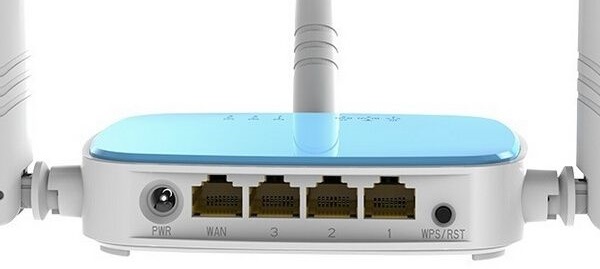
Check WiFi password in your router’s settings interface:
- Log in to your router’s management interface:
Open your favorite browser on your computer and enter 192.168.0.1 or 192.168.1.1 and then press the Enter key. In the dialog box, enter the login password. - Click ‘wireless settings’ – ‘wireless security’, check the password box, here you will see the wireless network password.
Please note that to view the WiFi password at the router setting interface, you need to know your router’s login password. If you even forget the login password, then the only way to solve the problem is to restore it to factory settings.
Reset your router and restore it to factory settings:
Take a look at your wireless router’s network cable interface. There is a RESET/WPS button (hole). You need to press this button for more than five seconds, look at your router front panel, after the SYSTEM indicator flashes three times, then release the RESET button. It will restore your router to factory settings. After the wireless router automatically restarts, you are able to log into your router’s management interface with its default user name and password, and then reconfigure Internet access and WiFi settings, which include WiFi password setting.
Posted in router setting Comments Off on What should I do if I forget WiFi password?